Setup guide
Follow these steps to get Family Check-In running with your family's Google Calendar.
1. Set up Google Calendar
Family Check-In reads directly from Google Calendar. Before connecting the app, set up dedicated calendars for chores, family events, and anything else you want on the TV.
Create a new calendar
In Google Calendar, click the + next to "Other calendars" in the left sidebar and select "Create new calendar."
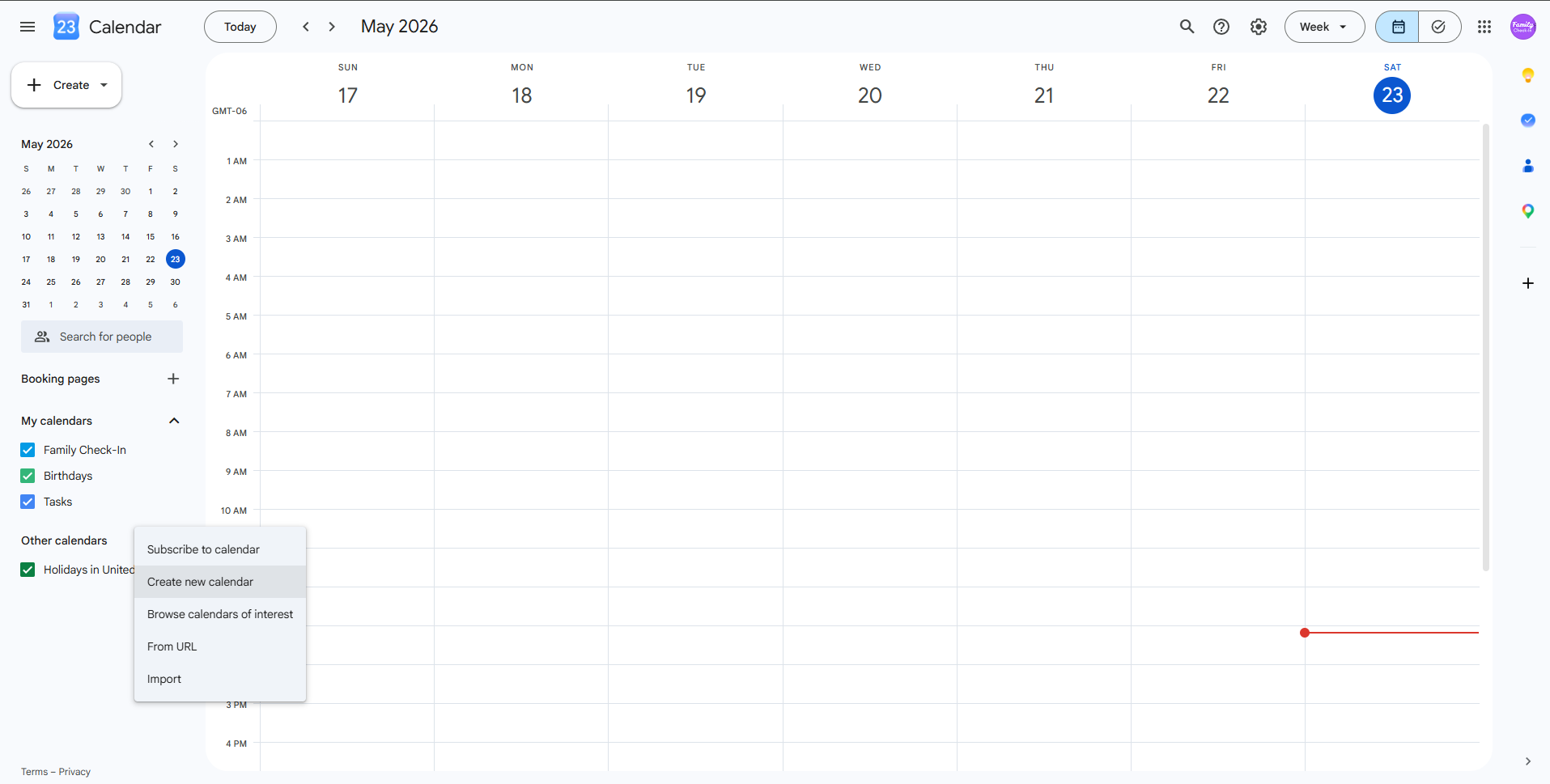
Click + next to Other calendars
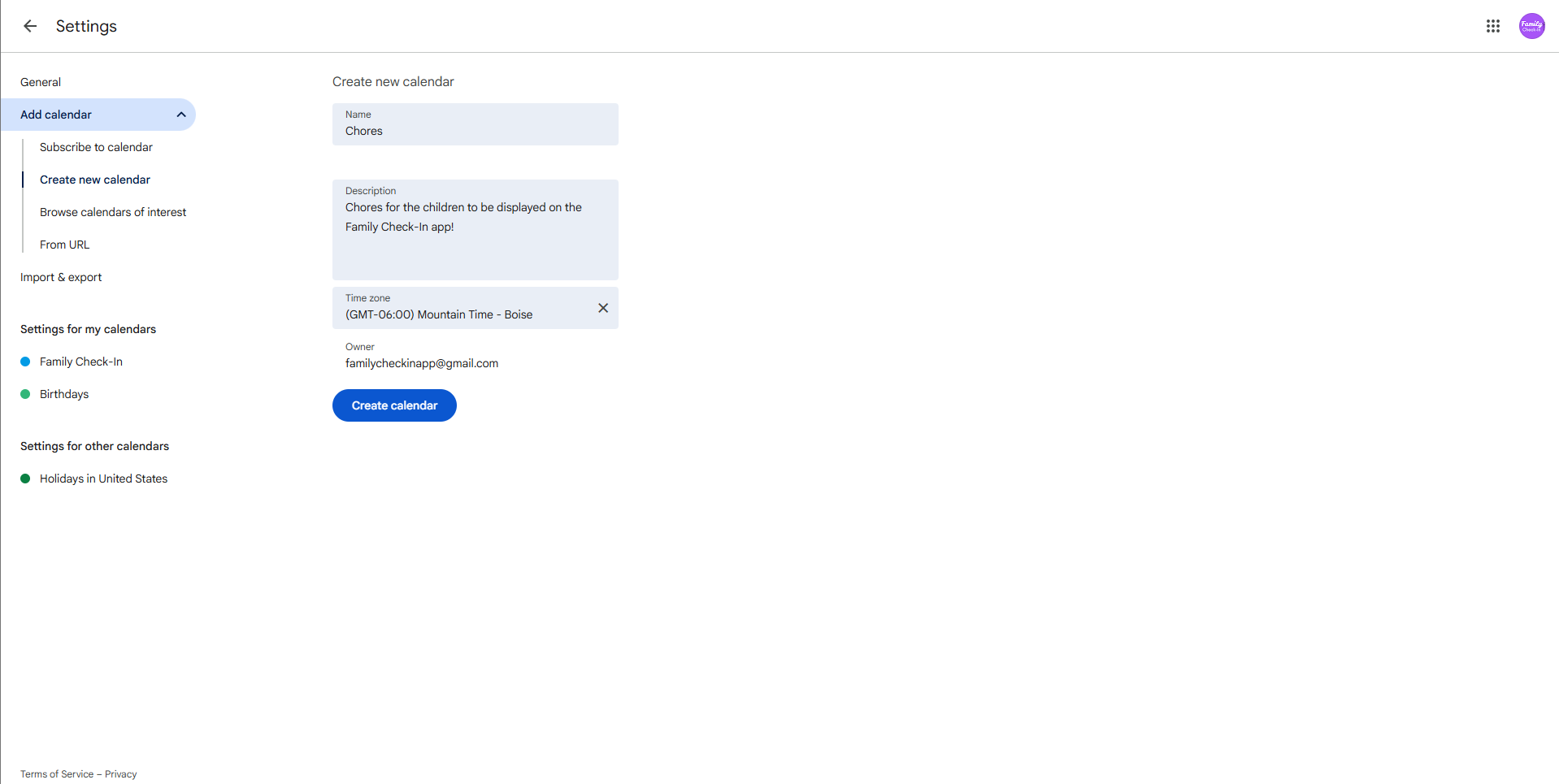
Name it and save
Create separate calendars for different types of content — for example: Chores, Family, and Meals. You'll assign each calendar a role in the app later.
Add chore events
Use square brackets in the event title to assign a chore to a family member. The event's end time is when the chore is due — and more importantly, it's when the column header lights up once all chores are complete.
- "Brush teeth [Emma]" — due by 7:30am
- "Take out trash [Dad]" — due by 8:00pm
- "Clean bathroom [Emma] [Lucas]" — assigned to both
Set end times to match your family's checkpoints, not the literal deadline. For example, if morning chores should be done before school, set all of them to end at 6:00am — the column turns green once all chores due in the past are checked off — 6am, yesterday, or otherwise — making it easy to see at a glance whether the morning routine is complete before the rush starts.
The name in brackets must match the column name you configure in the app. Make recurring daily events for chores that happen every day.
Chores with no bracket tag appear in an Unassigned column — useful for ad-hoc tasks that anyone can pick up.
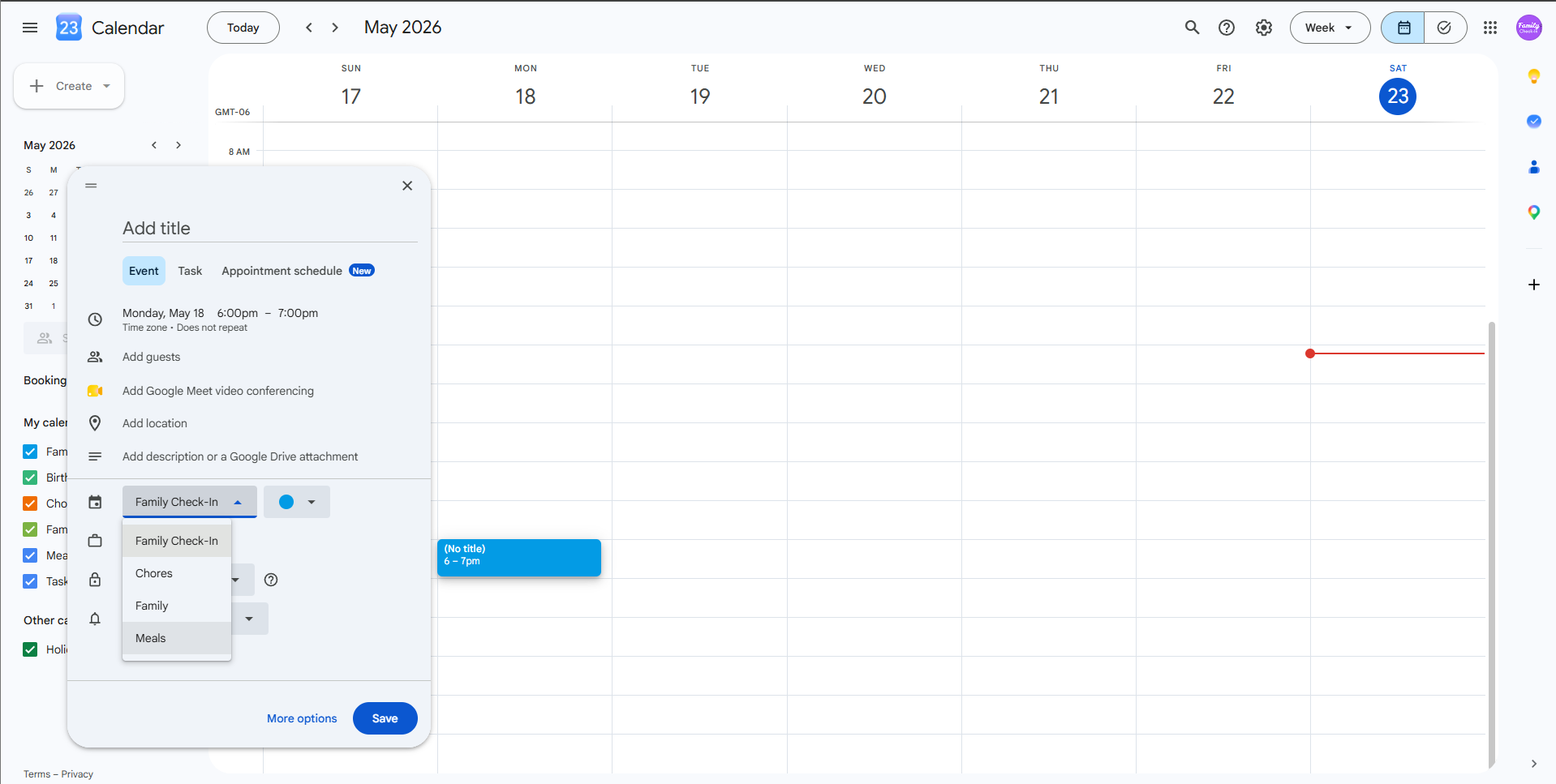
Create event with [Name] in the title
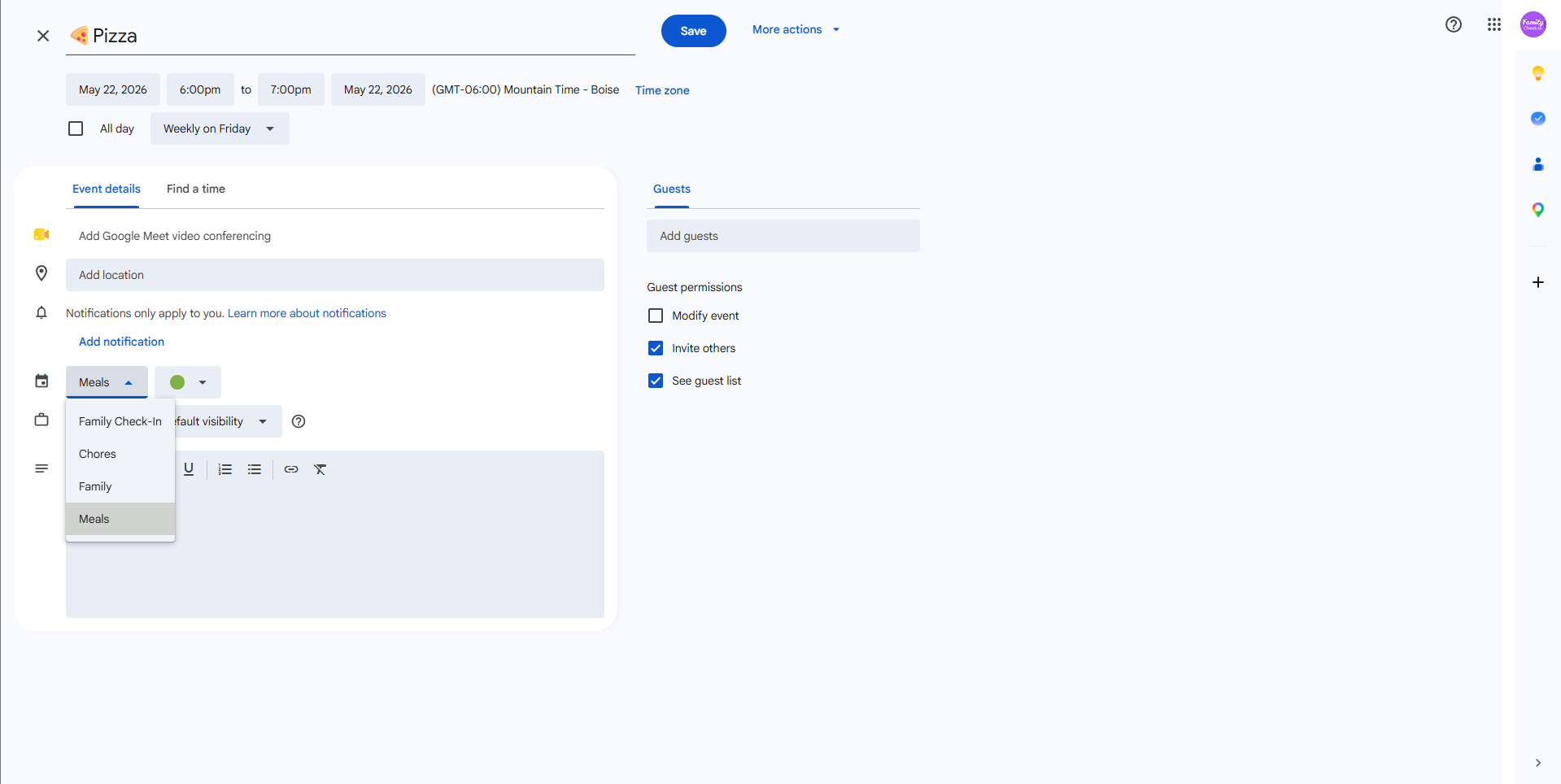
Set end time and make it recurring
What a filled calendar looks like
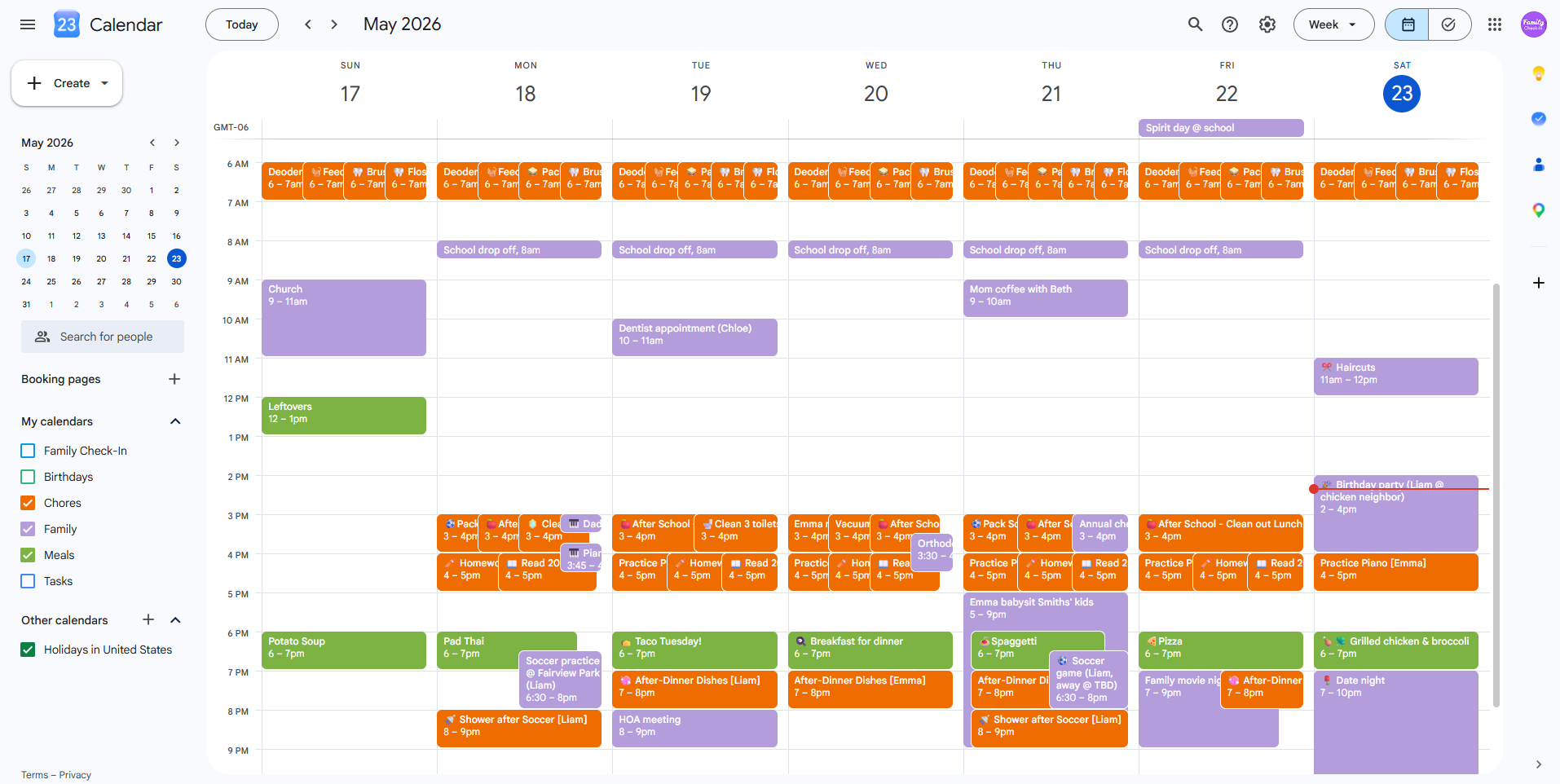
Calendars populated with chores and events
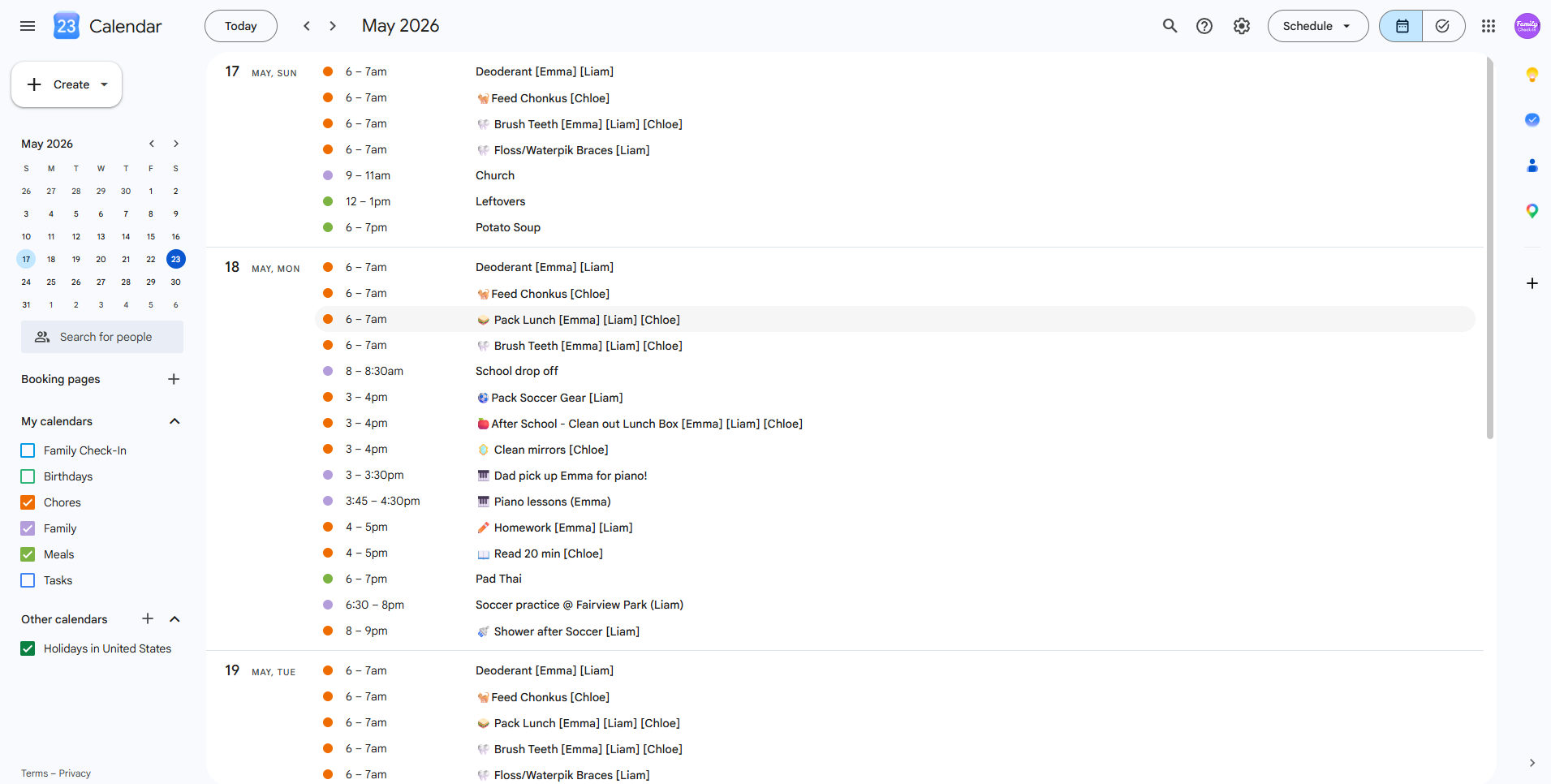
Agenda view showing the same data
2. Connect your Google account
Open Family Check-In on your Roku. After selecting the free 30-day trial, a device code and QR code will appear on screen.
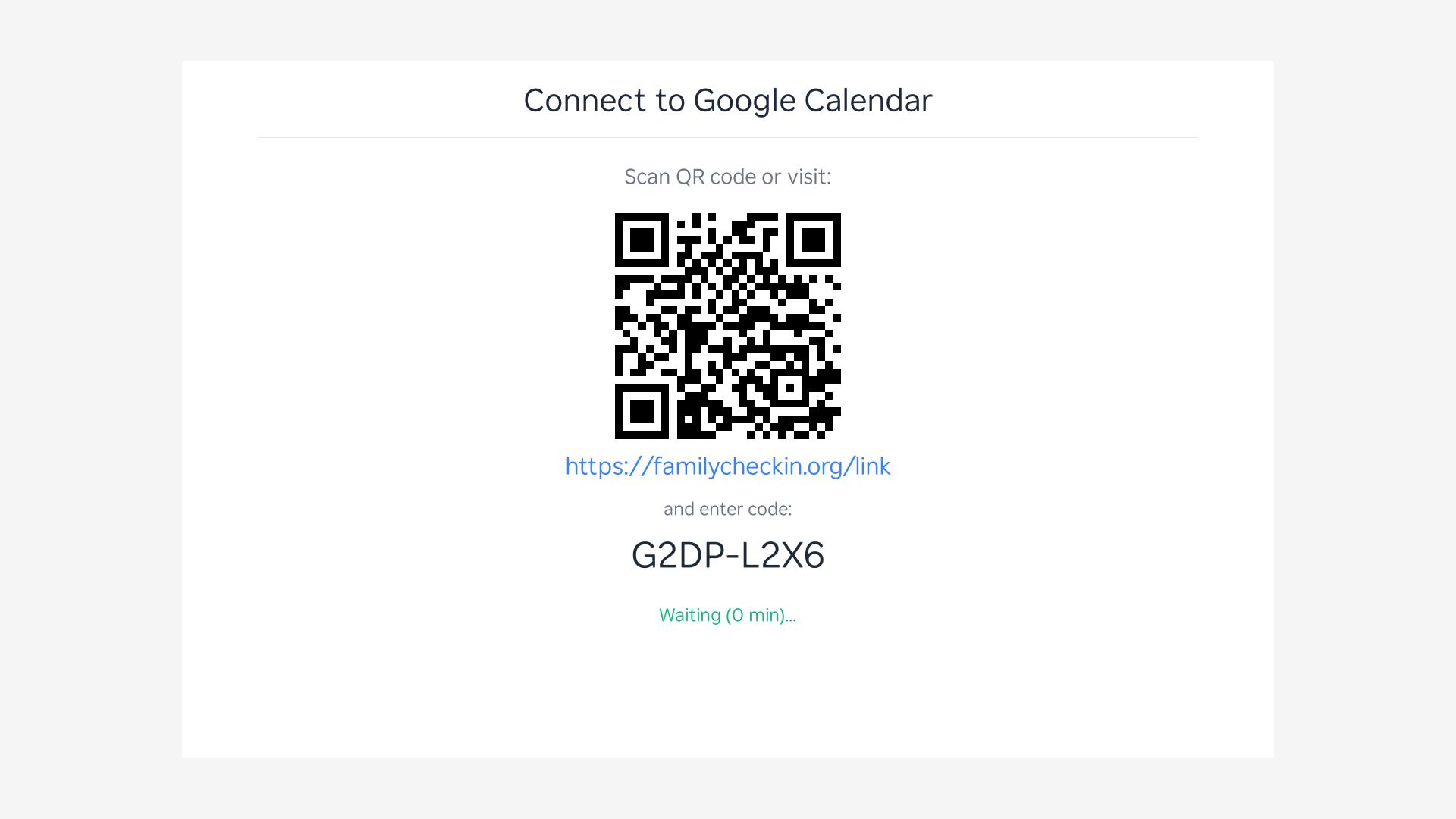
The device code screen — scan the QR code or visit the URL manually
On your phone or computer, visit familycheckin.org/link and enter the code shown on your TV.
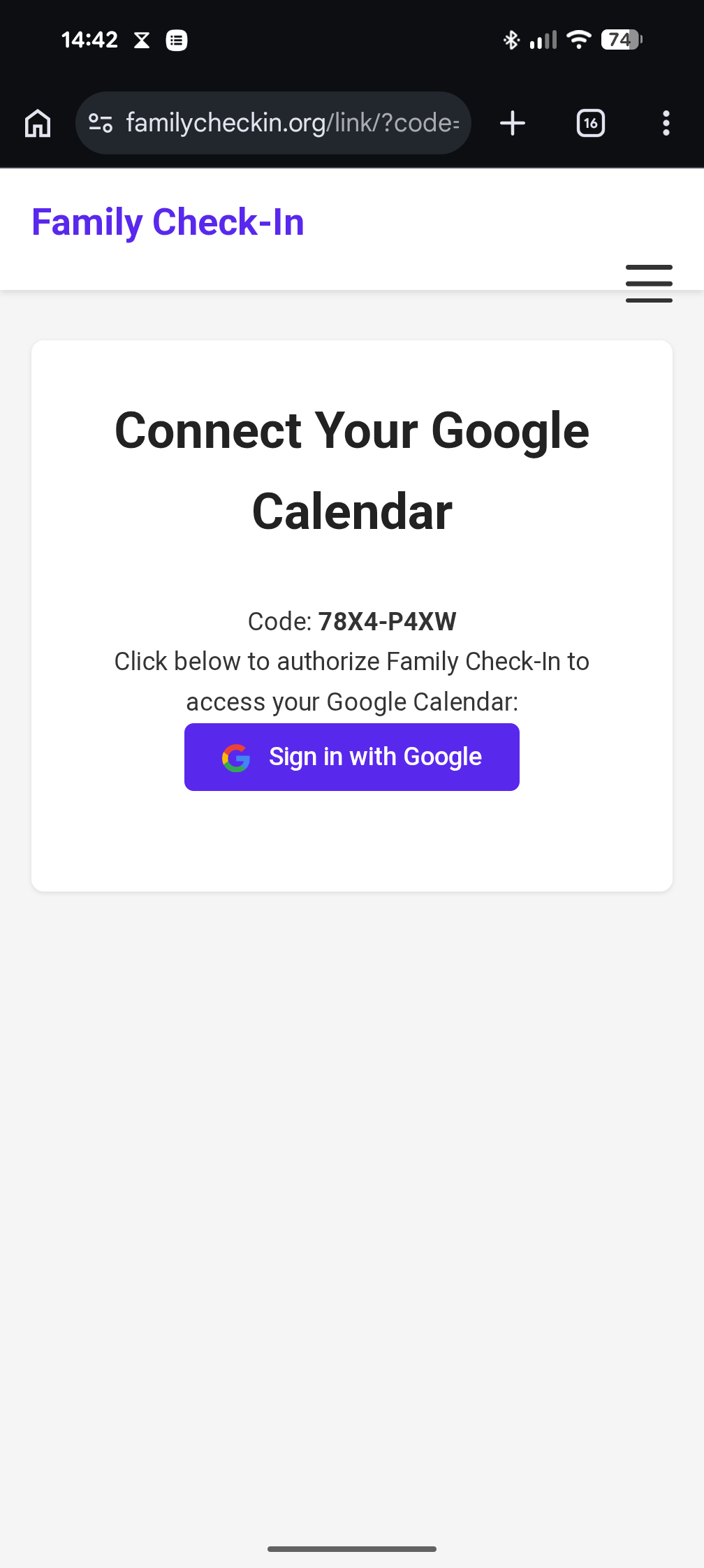
Enter the code at familycheckin.org/link
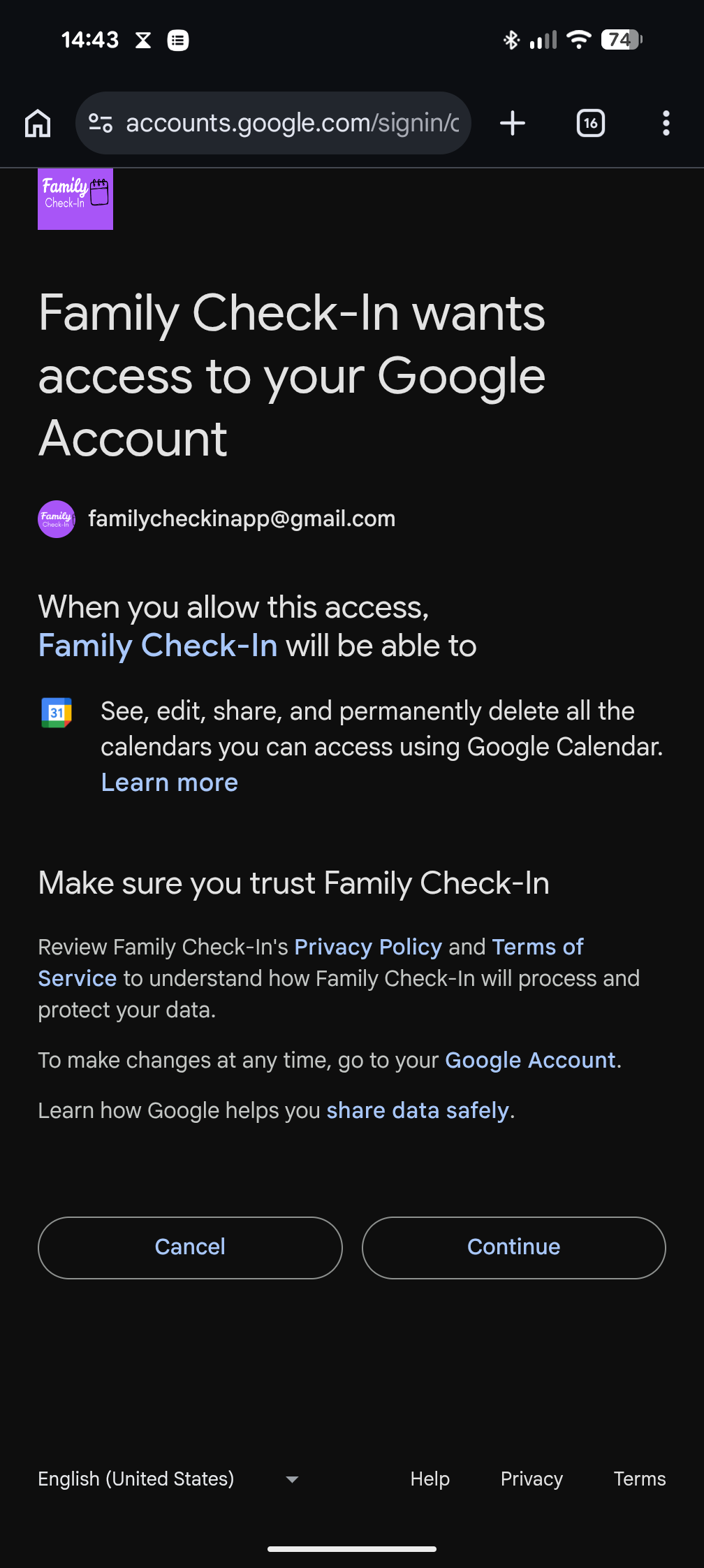
Sign in and grant calendar access
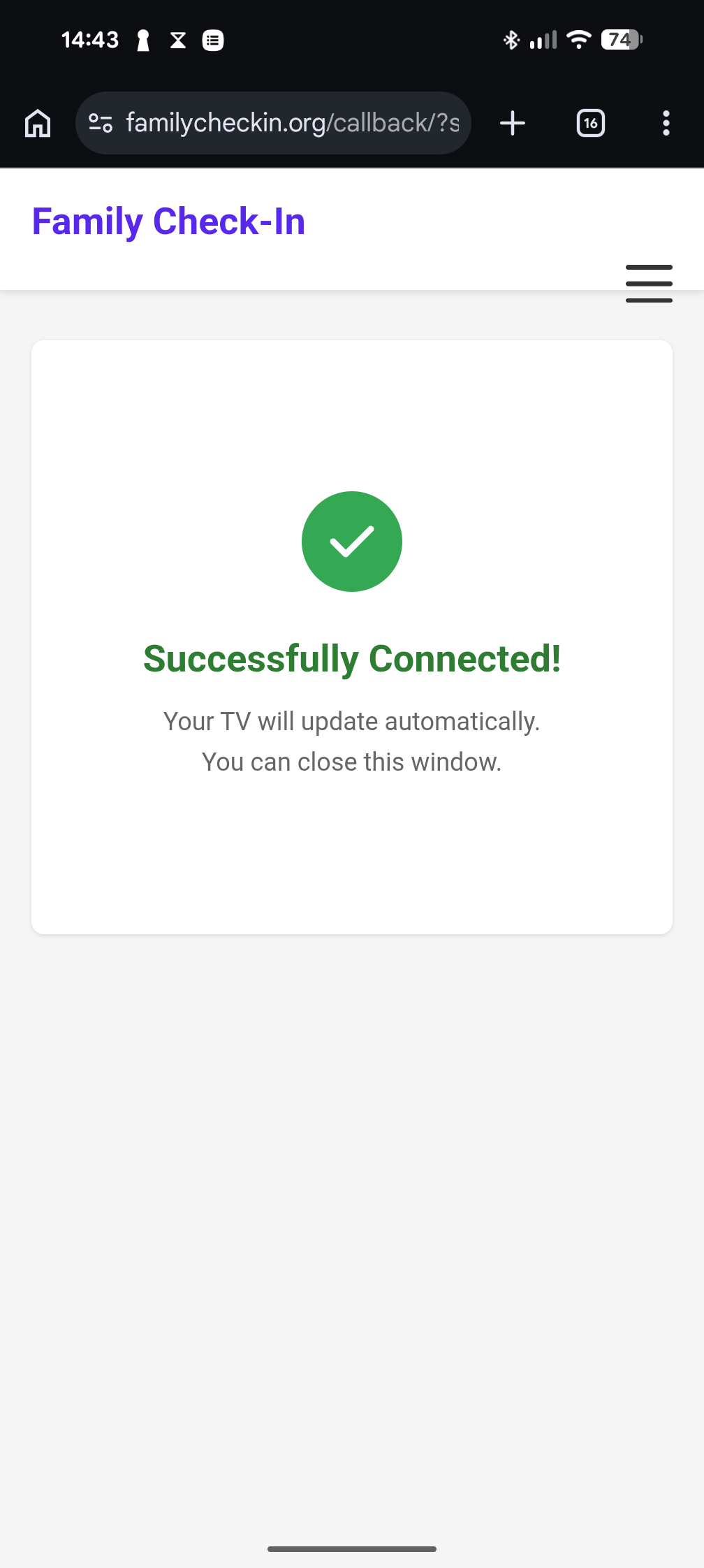
Done — your TV will update automatically
3. Configure the app
After connecting, the app starts on the main menu. Navigate to Settings to pick your calendars.
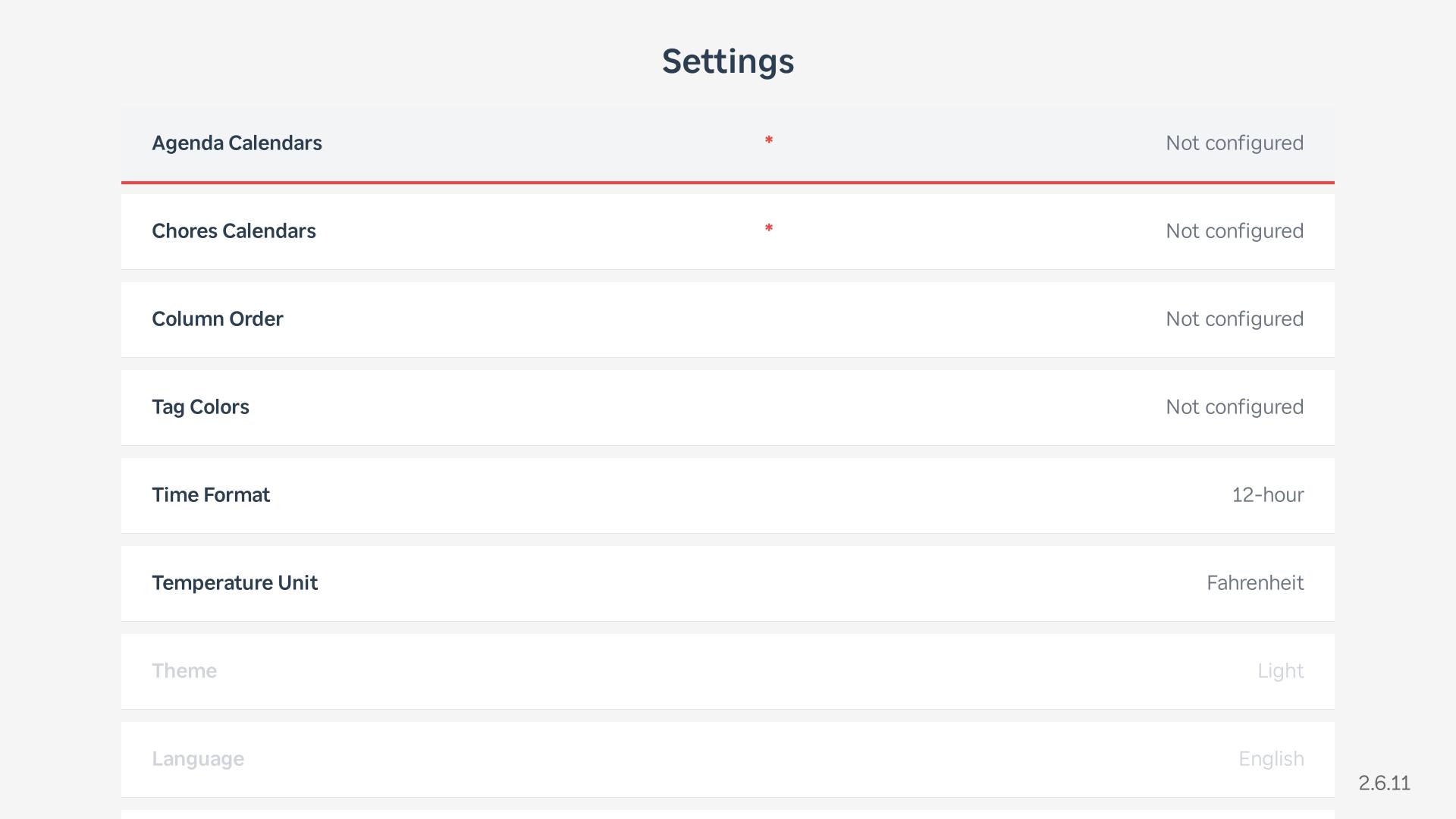
The main menu — navigate here any time by pressing * or Back from the main screen
Select your calendars
Choose which calendars appear in each section. Agenda calendars show on the left as a timeline of upcoming events. Chore calendars populate the per-person columns.
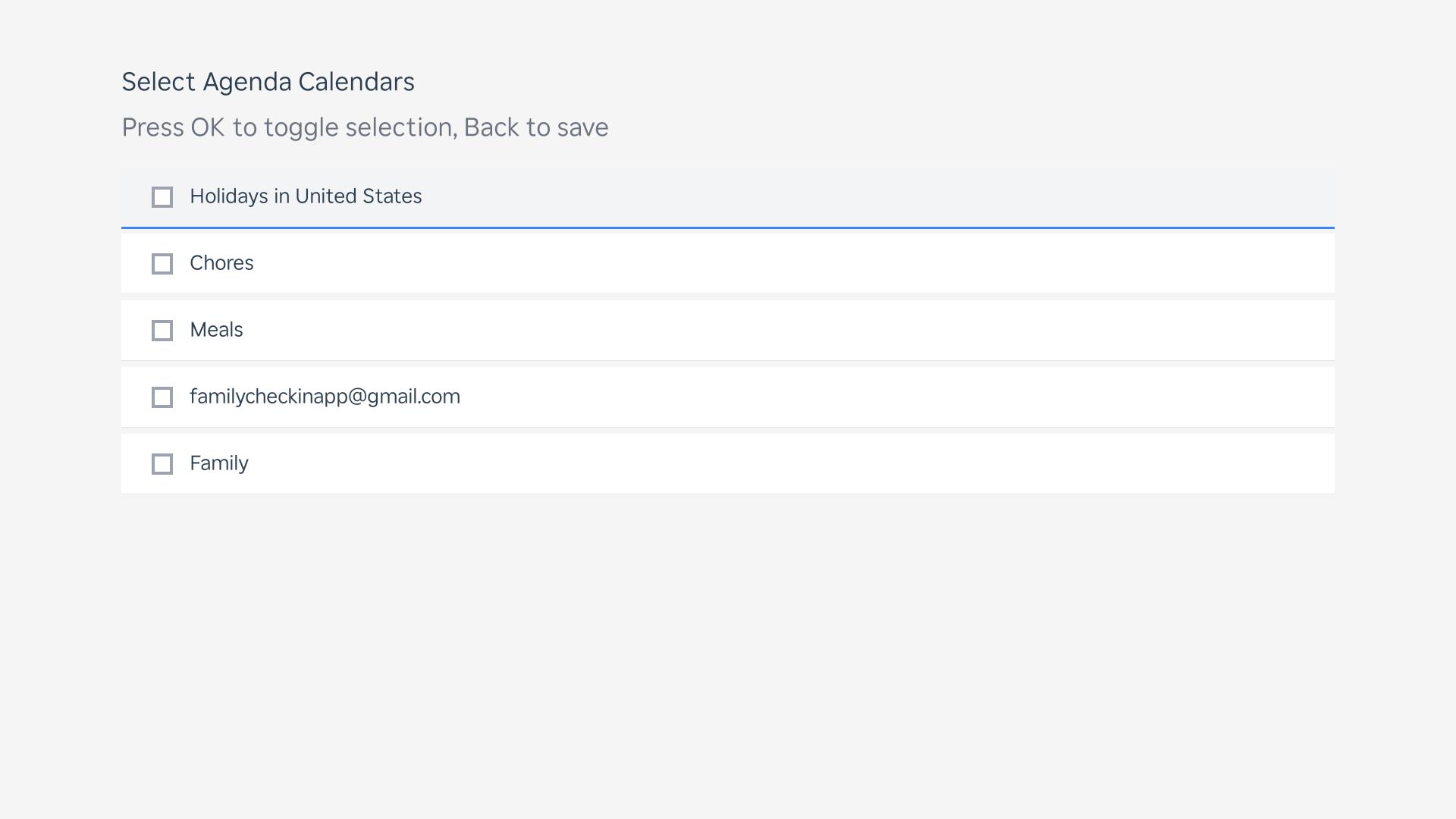
Agenda calendar picker — none selected
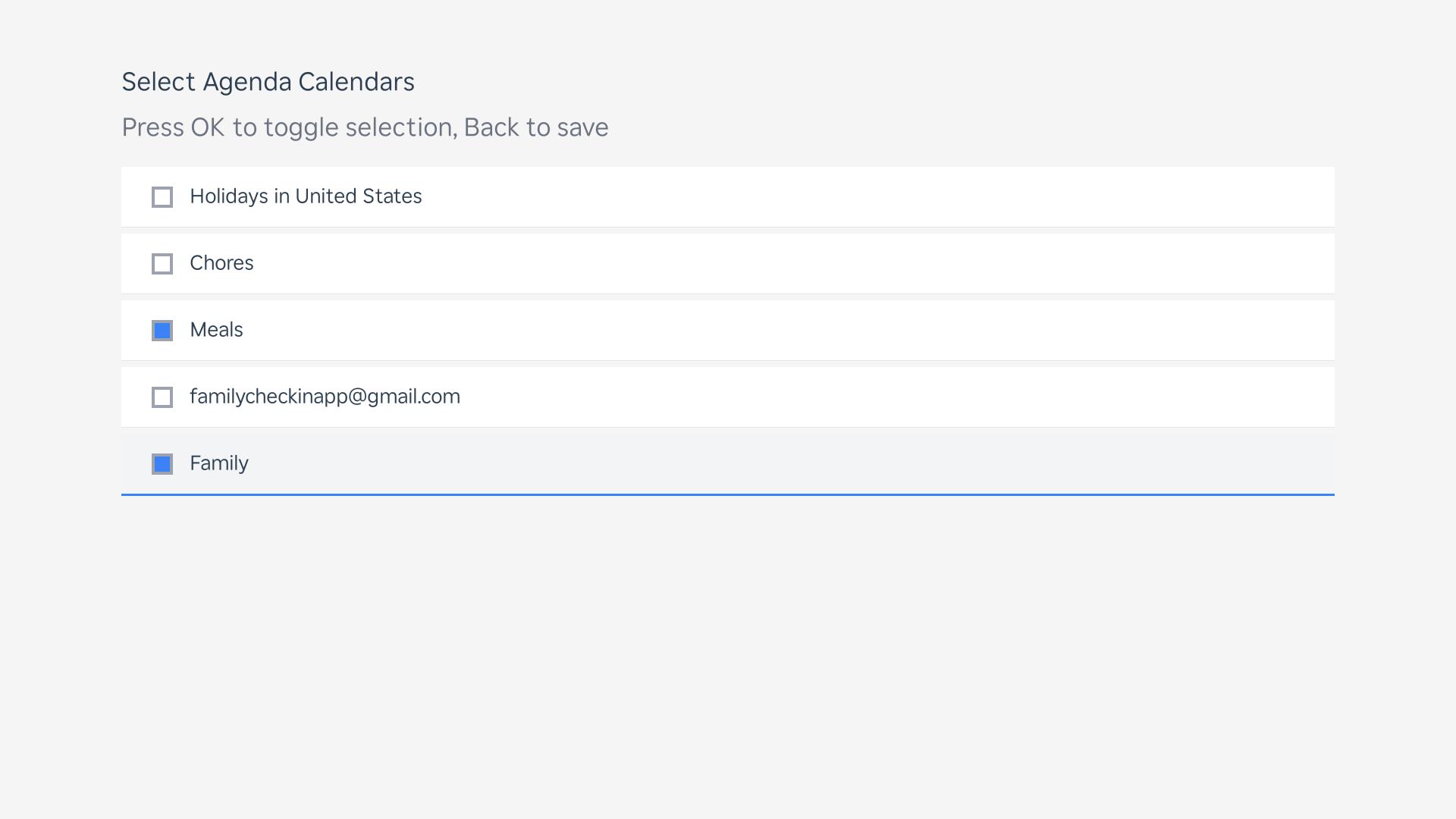
Select your family events and meals calendars
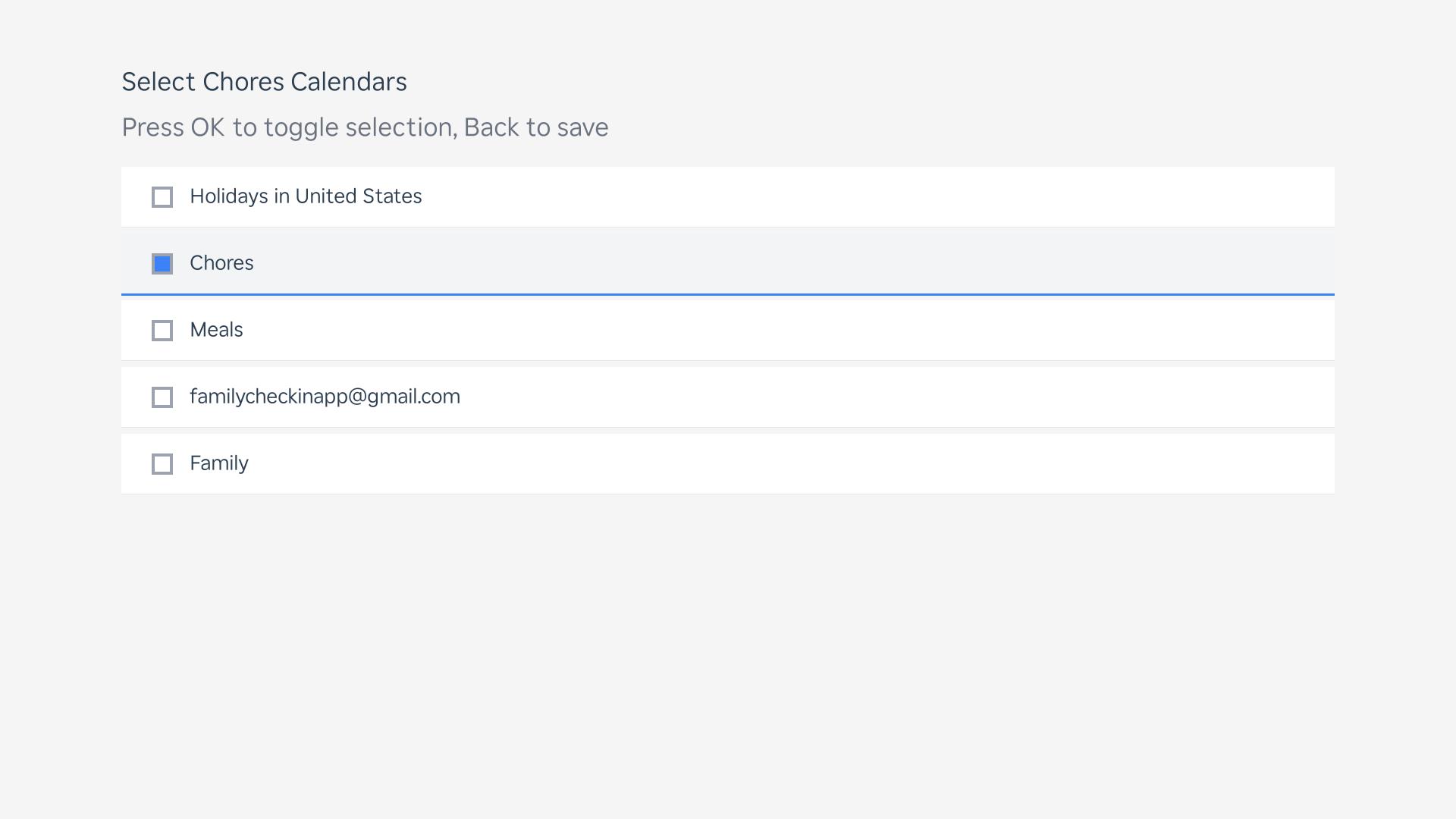
Select your chores calendar
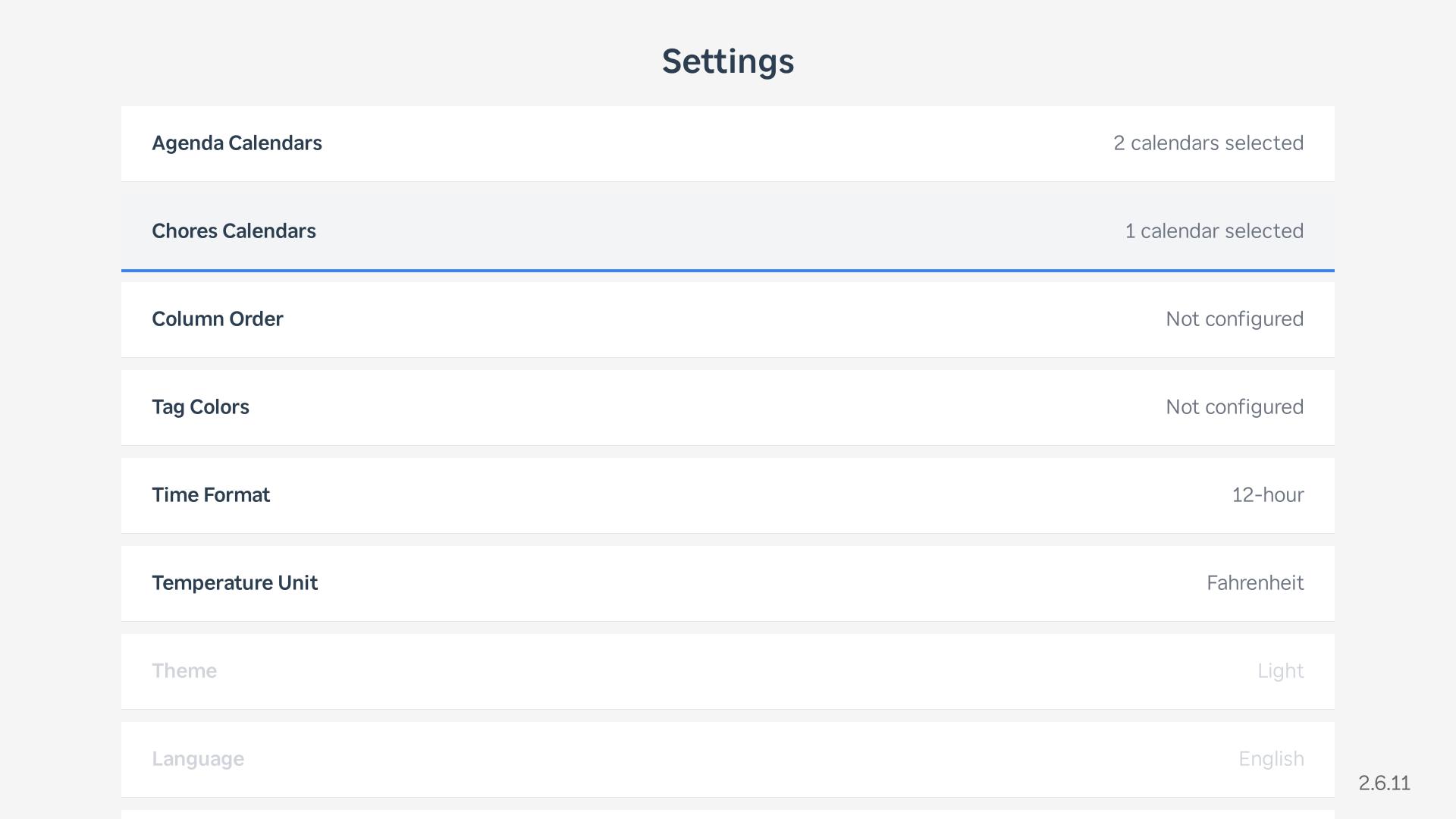
Settings with calendars configured
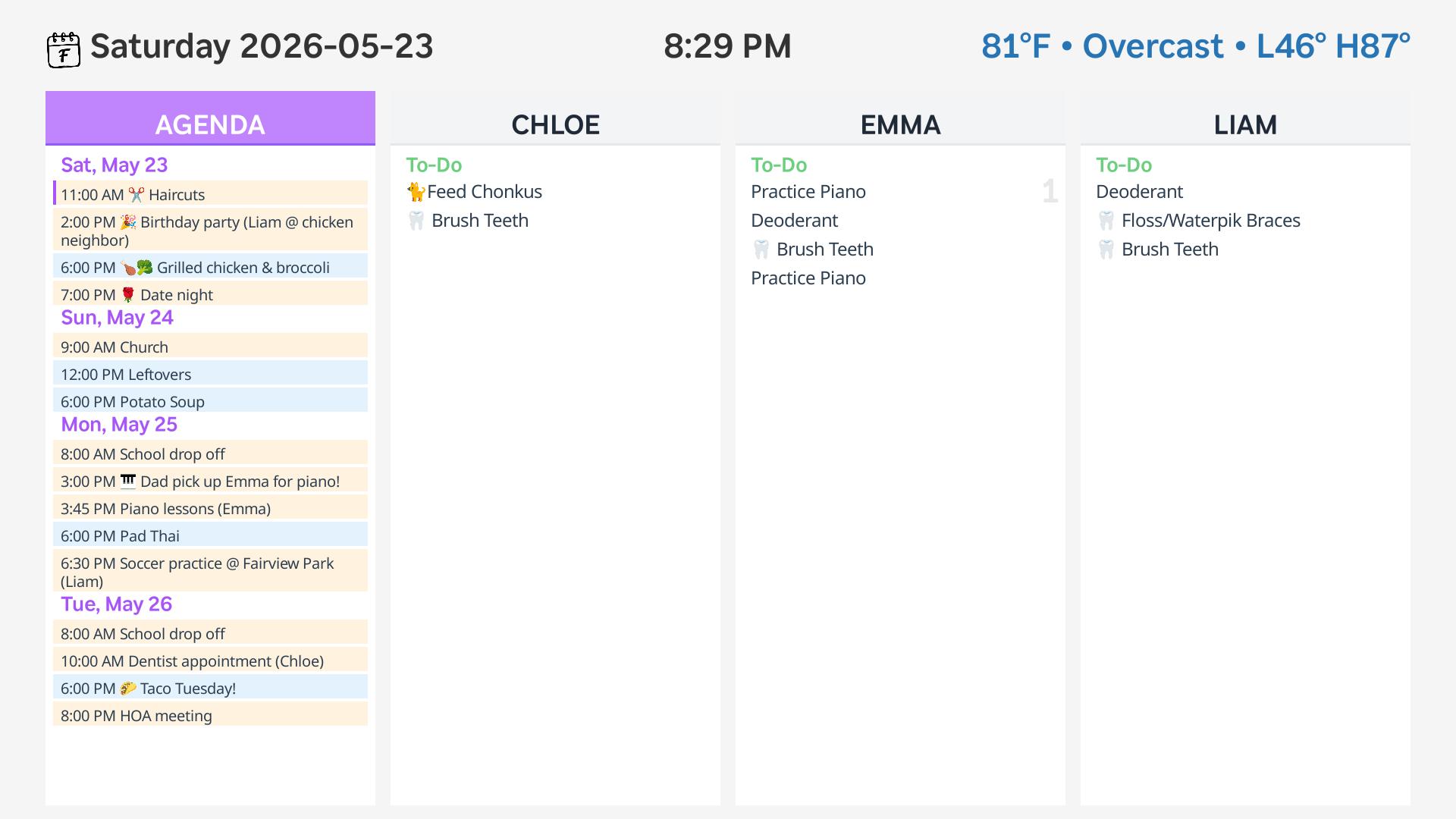
Back out or press * to return here — main screen populated with your data
Tag colors
Each tag (or family member) can show a color when all their due chores are complete. Set this up in Settings → Tag Colors.
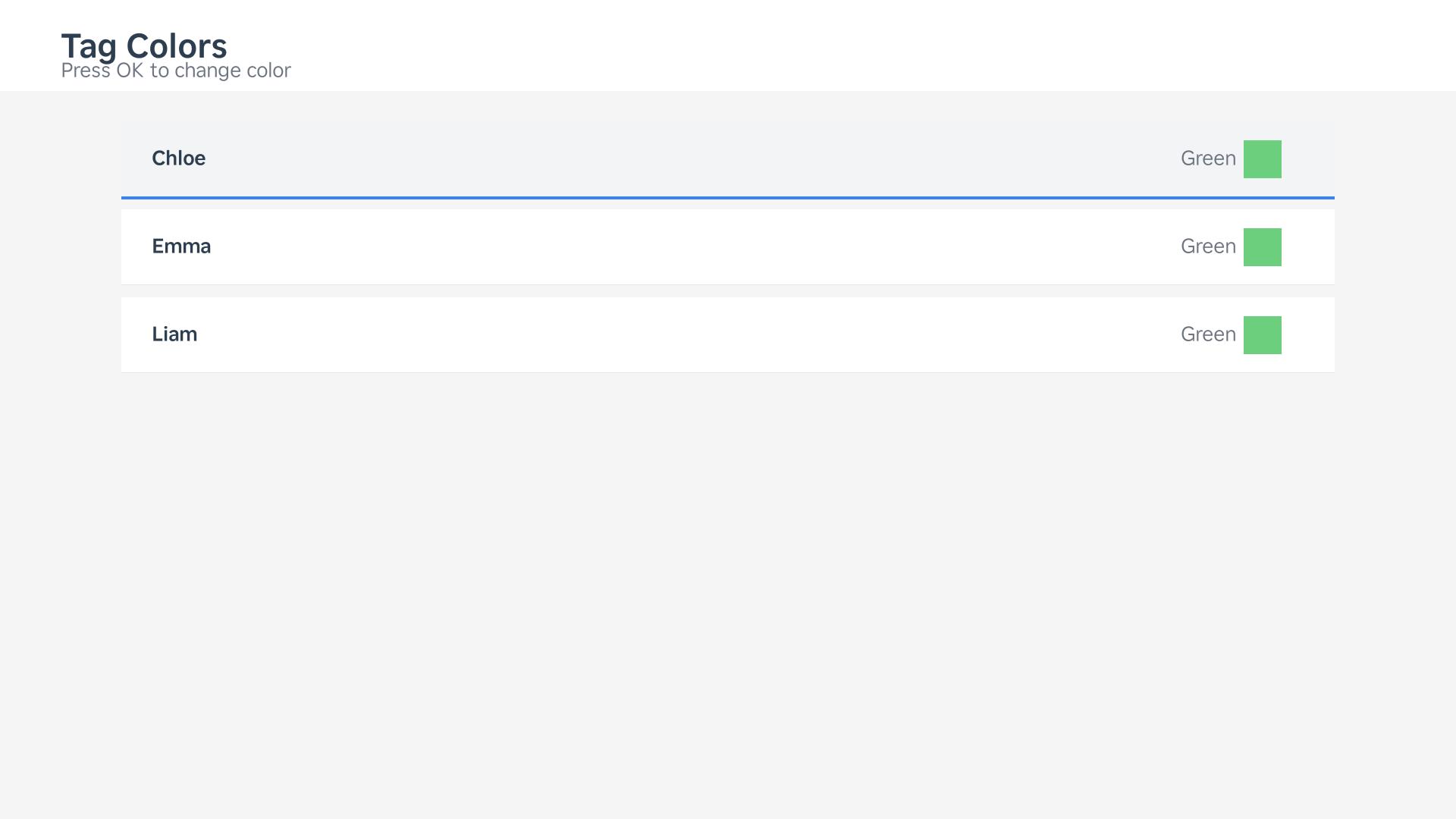
Tag color settings
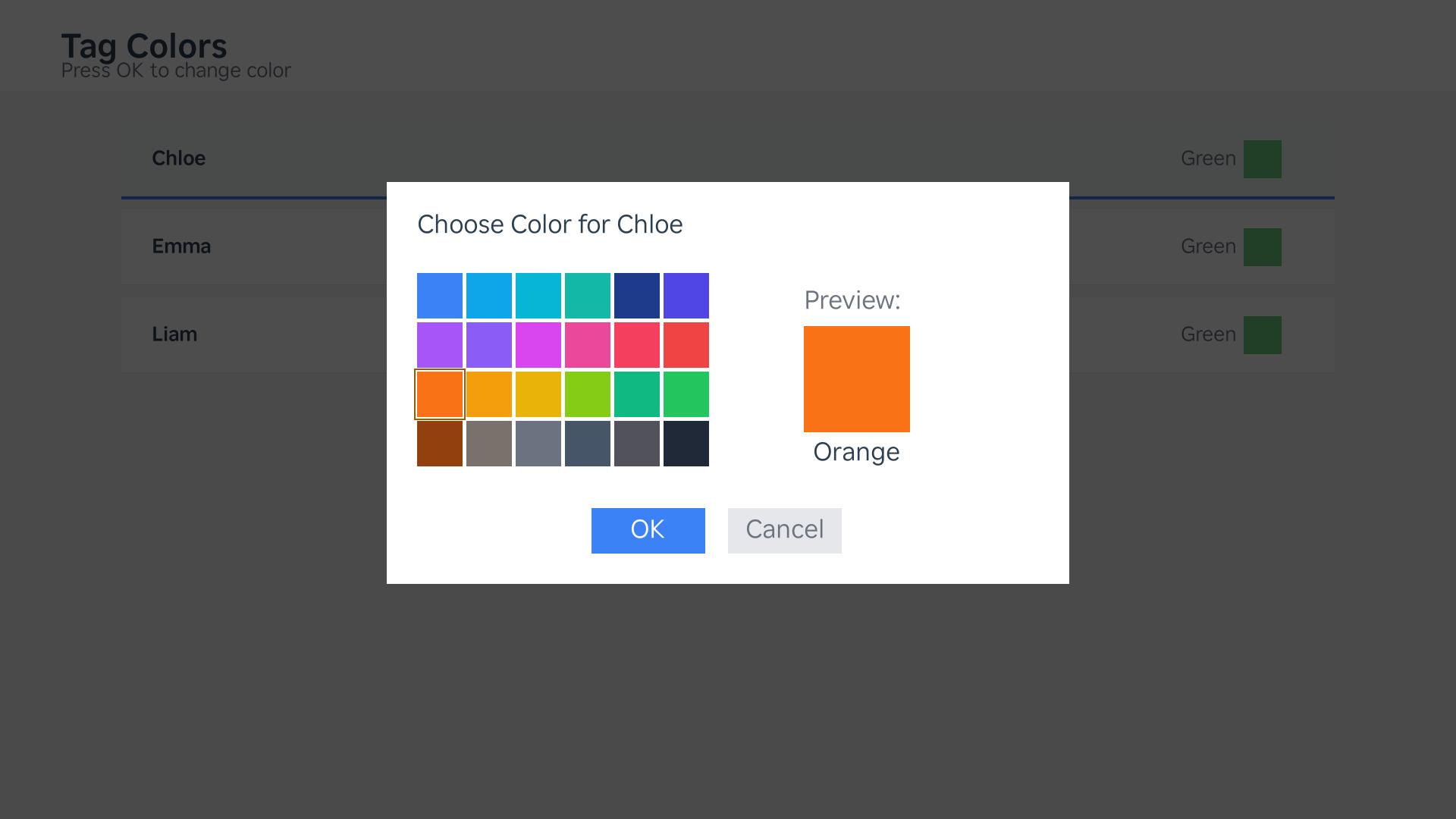
Pick a color for each person
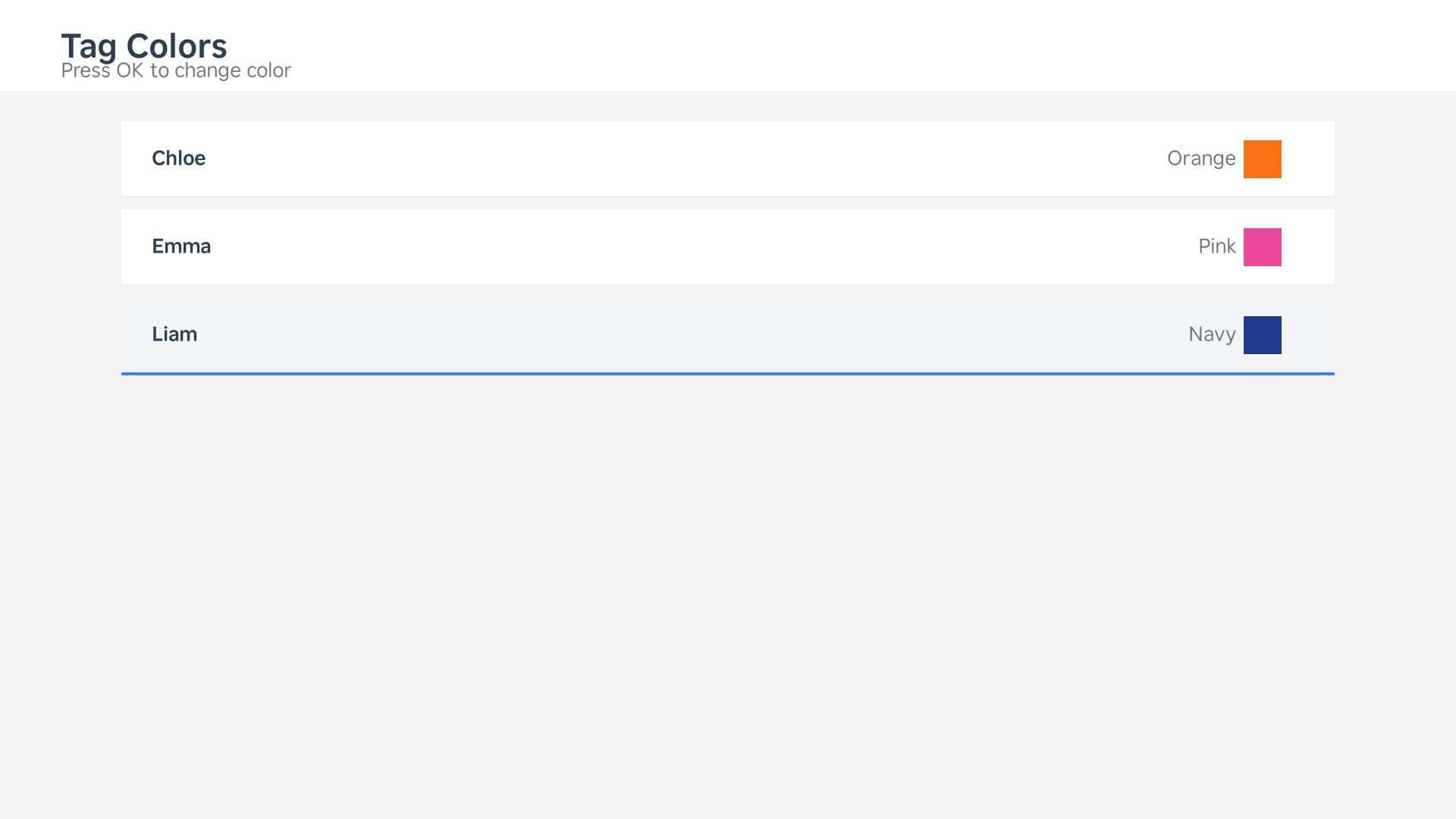
Colors set — the column header lights up when all chores are done
Column order
Rearrange columns in Settings → Column Order to match how your family uses the screen.
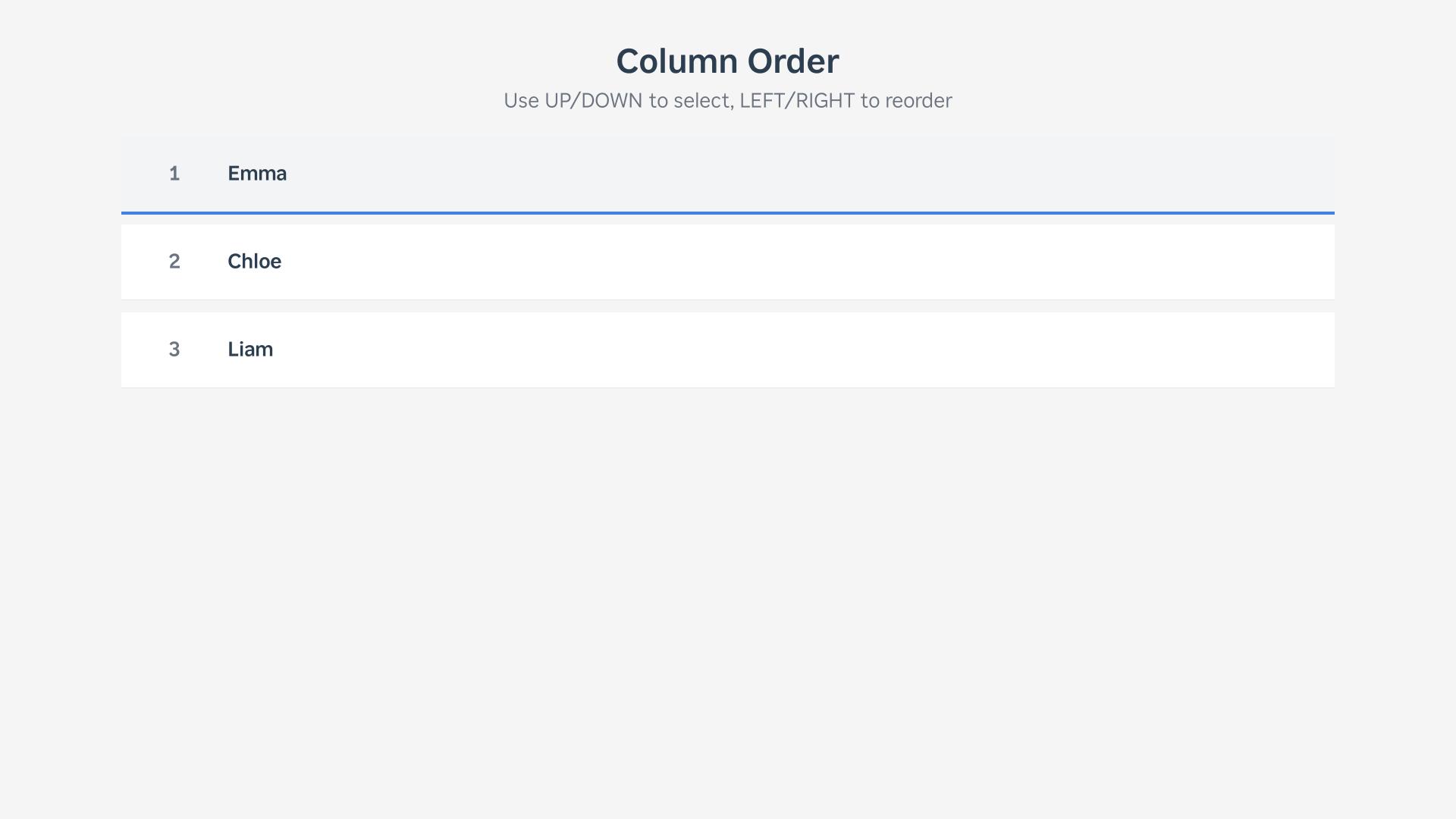
Drag columns into your preferred order
4. Daily use
Navigate to a chore with the arrow keys and press OK to mark it complete. Each person's chores are in their own column — scroll down to see more.
When all due chores in a column are done, the column header shows its configured color. Completed chores sync back to Google Calendar immediately.
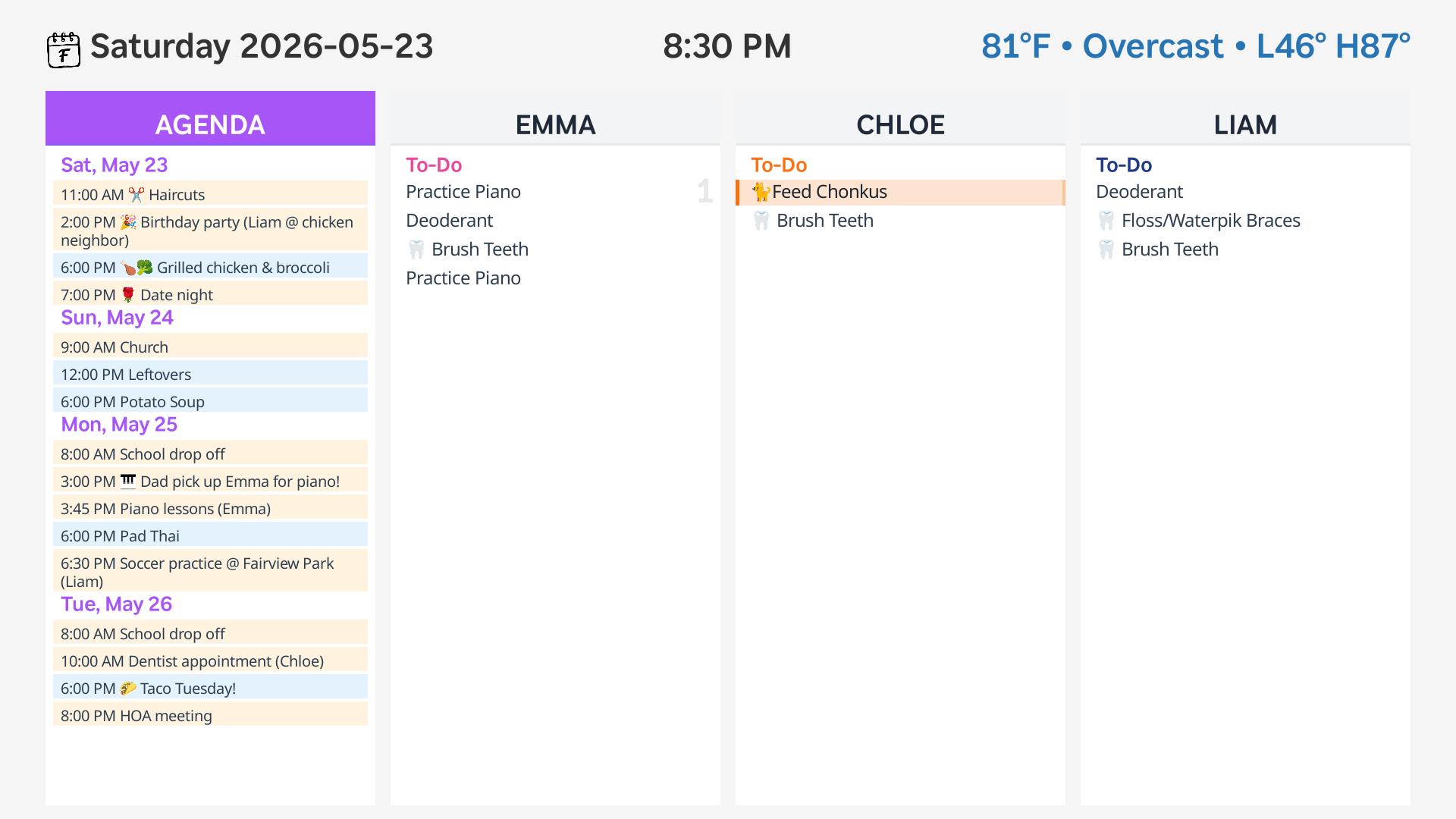
Navigate to a chore
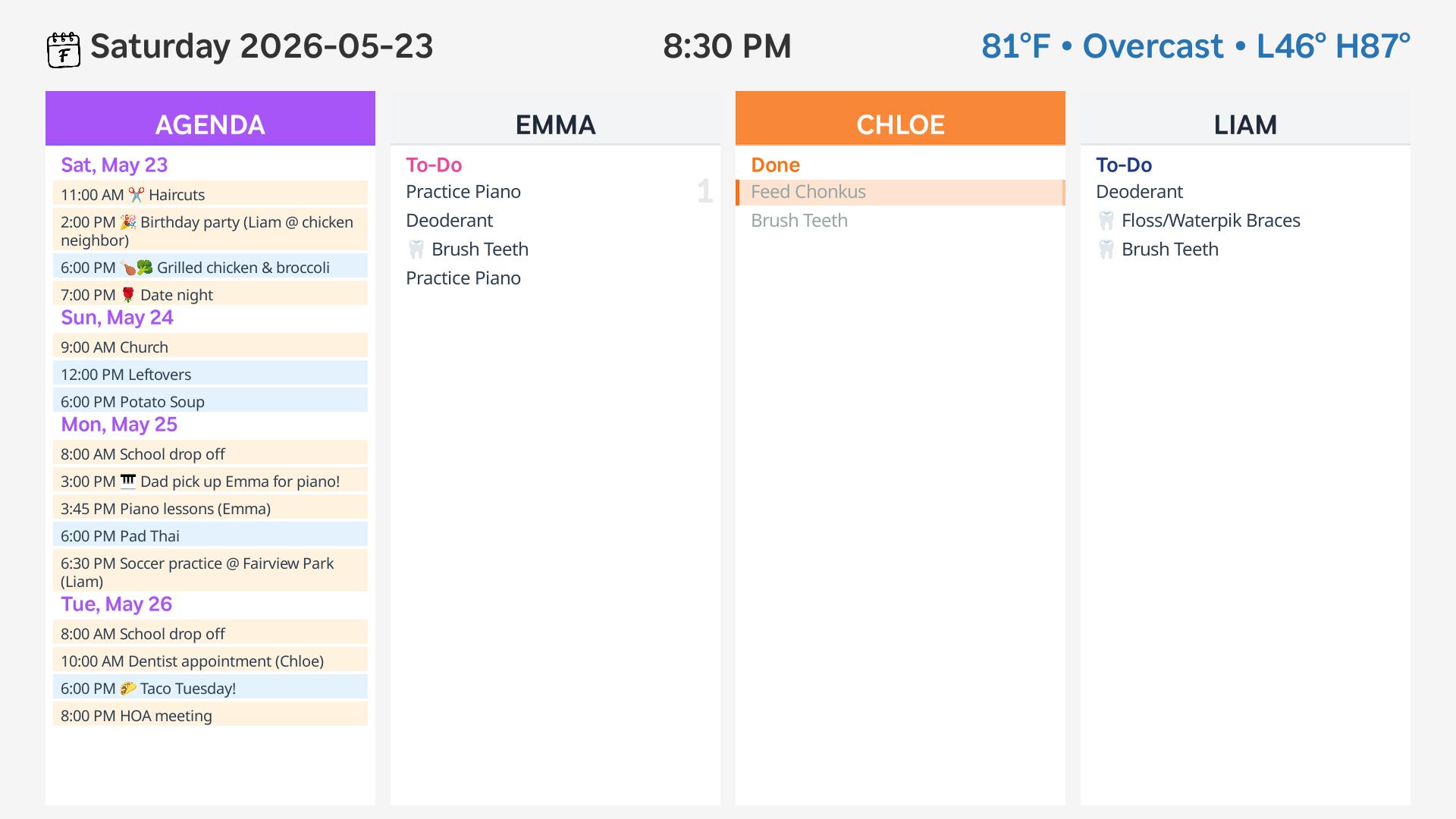
Press OK to mark it done
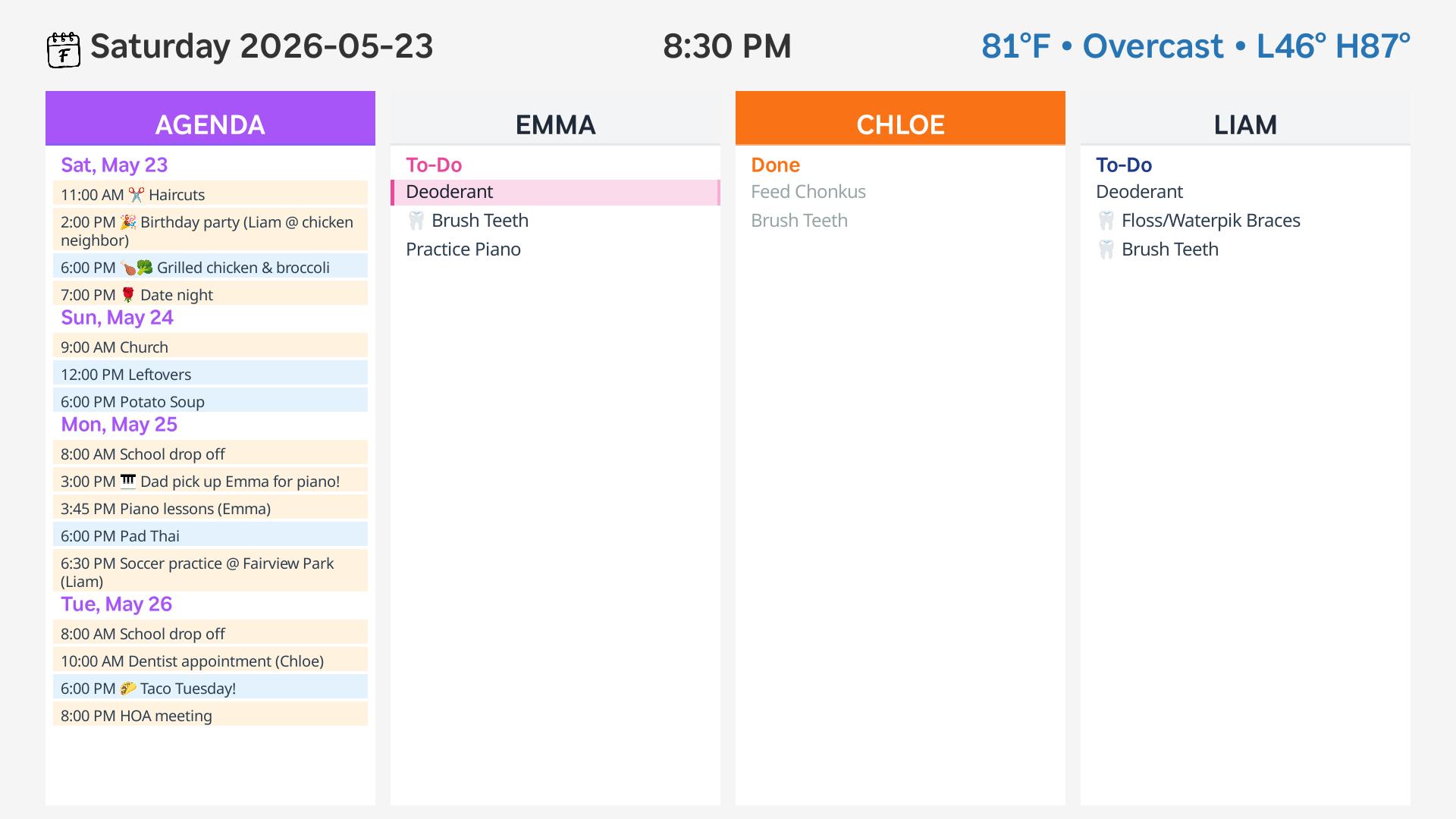
Emma's chores
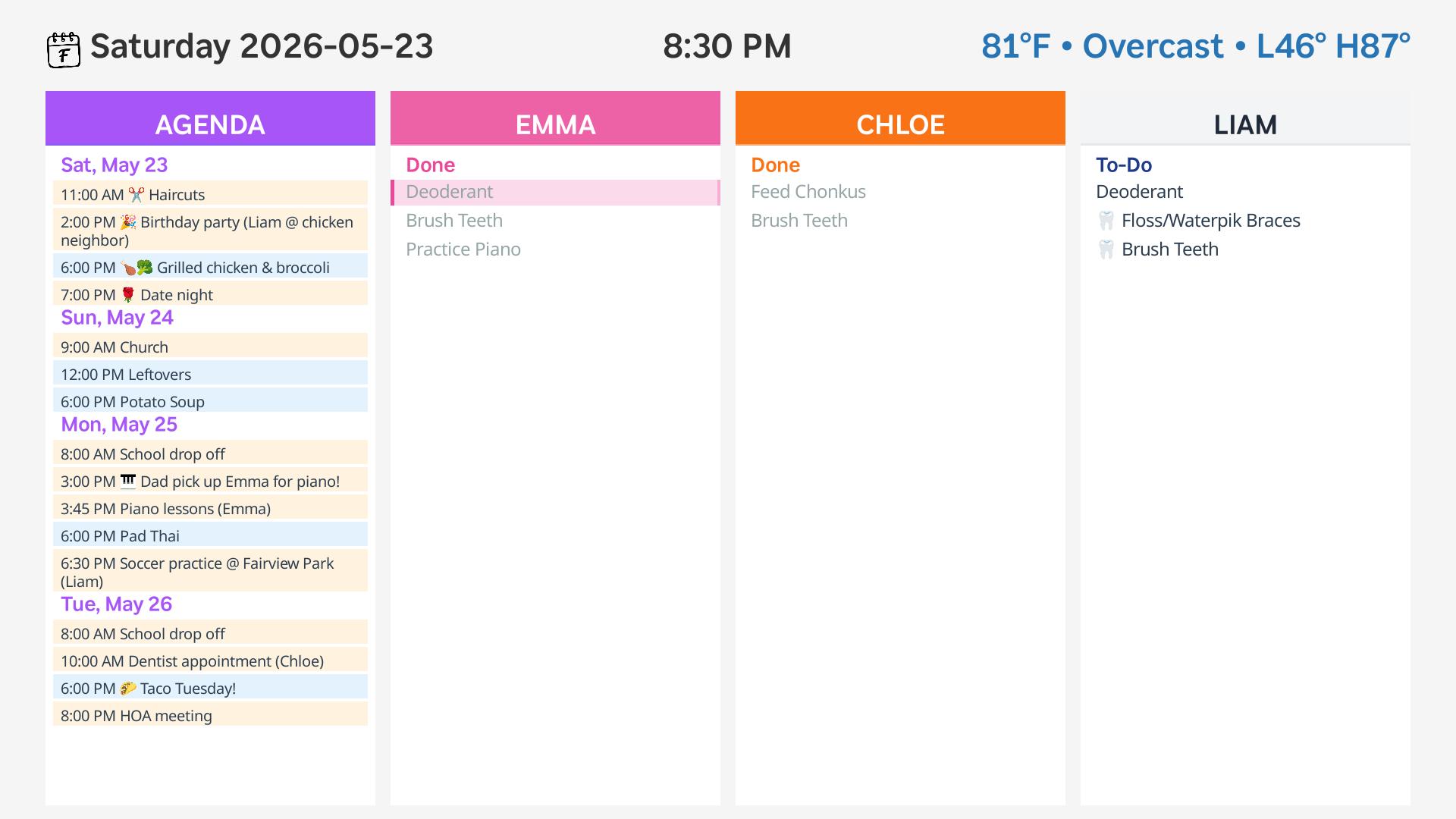
Marked complete
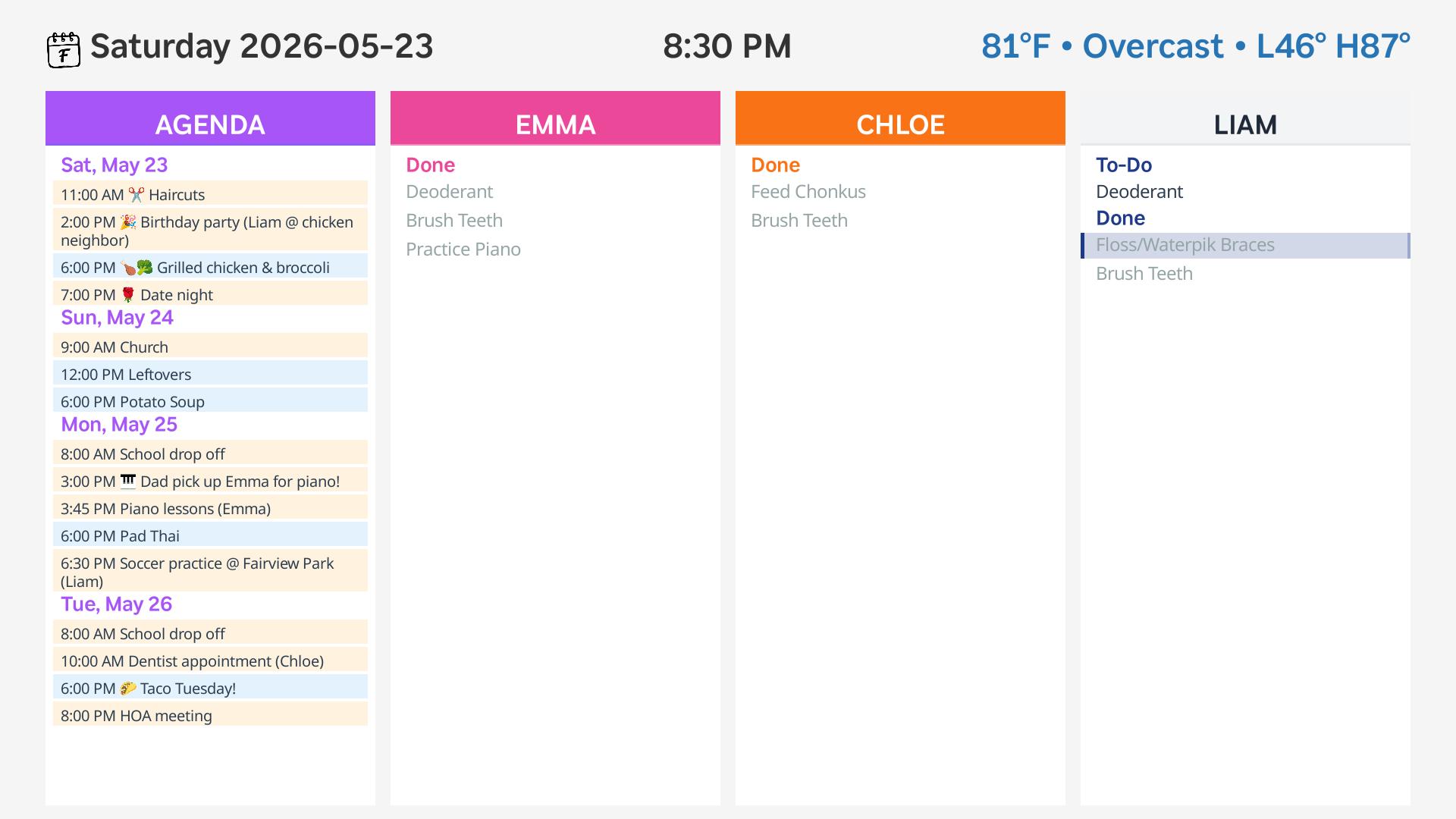
Liam's chores
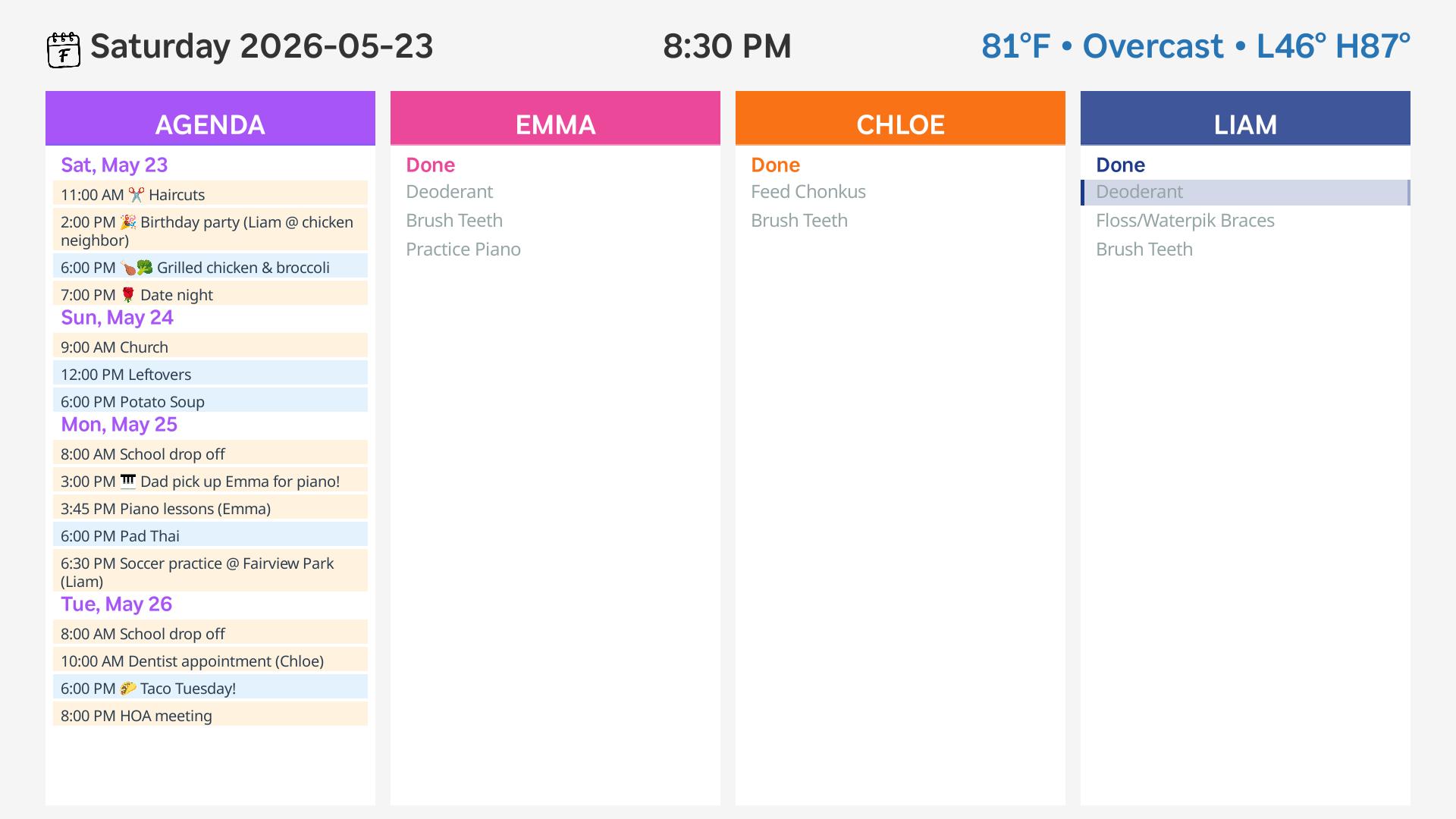
Marked complete
Tips and troubleshooting
Tips
- Separate calendars: Keep chores, family events, and meals in different calendars — you assign each one a role in the app
- Consistent naming: The name in brackets must exactly match the column name in settings (e.g., always "Mom", not sometimes "Mom" and sometimes "Mother")
- Due times: The end time is when the column header lights up, not necessarily when you'd verbally tell a kid the chore is due. Set it to the checkpoint you care about — "before school" or "before bedtime" — so the header tells you at a glance whether the routine is finished
- Refresh: Open Settings and back out to force a calendar refresh
Reconnecting your account
If you need to sign in with a different Google account or revoke access, go to Settings → Clear Authentication and follow the connection steps again.
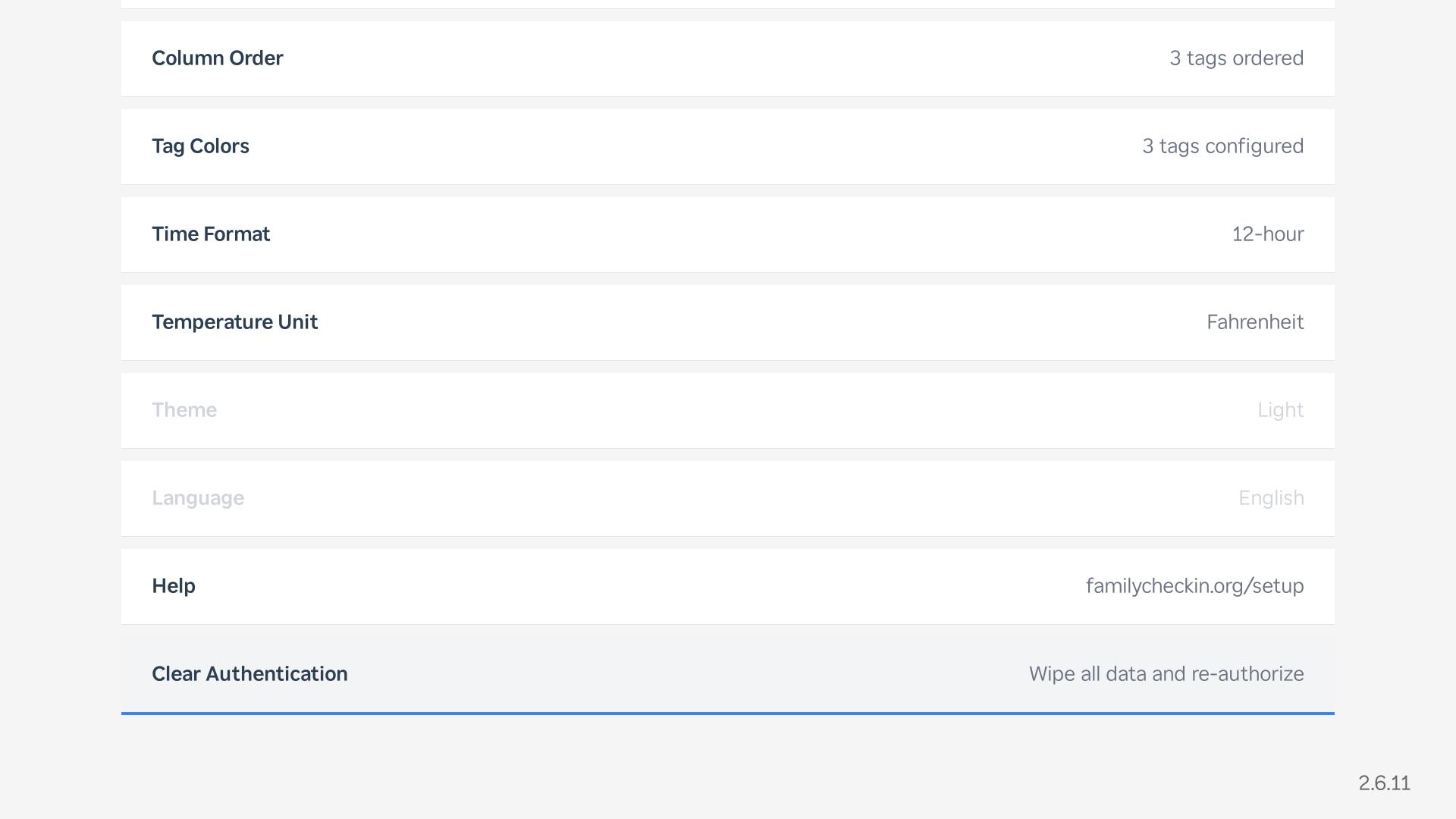
Settings → Clear Authentication
In-app help
Press the * (star) button and navigate to Help for a quick reference guide on the TV.
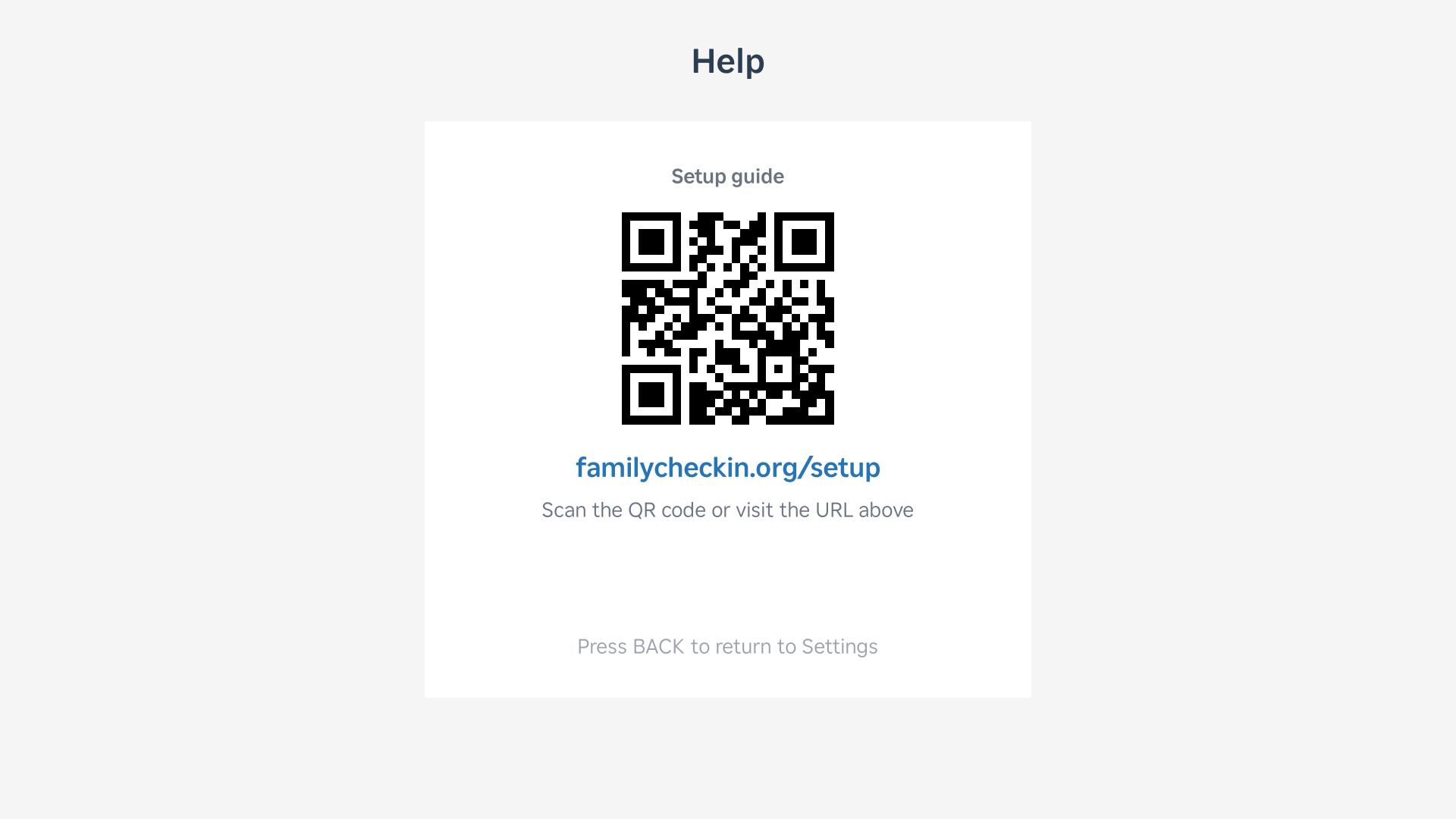
In-app help screen
Still stuck? Email familycheckinapp@gmail.com or visit the support page.